The Trucking Calculator can be used directly within a Project Estimate to calculate trucking needs for a service. It helps estimate the number of required trucks and the trucking hours per truck based on material inputs, default settings, and job-specific travel time.
The calculator provides a strong baseline, but users should still review the results against the actual job conditions and make manual adjustments when needed.
Open the Estimate
Open the Project and select the Estimate you want to work on.
Expand the Service that requires trucking.
Locate the Trucking line item.
Open the Trucking Calculator
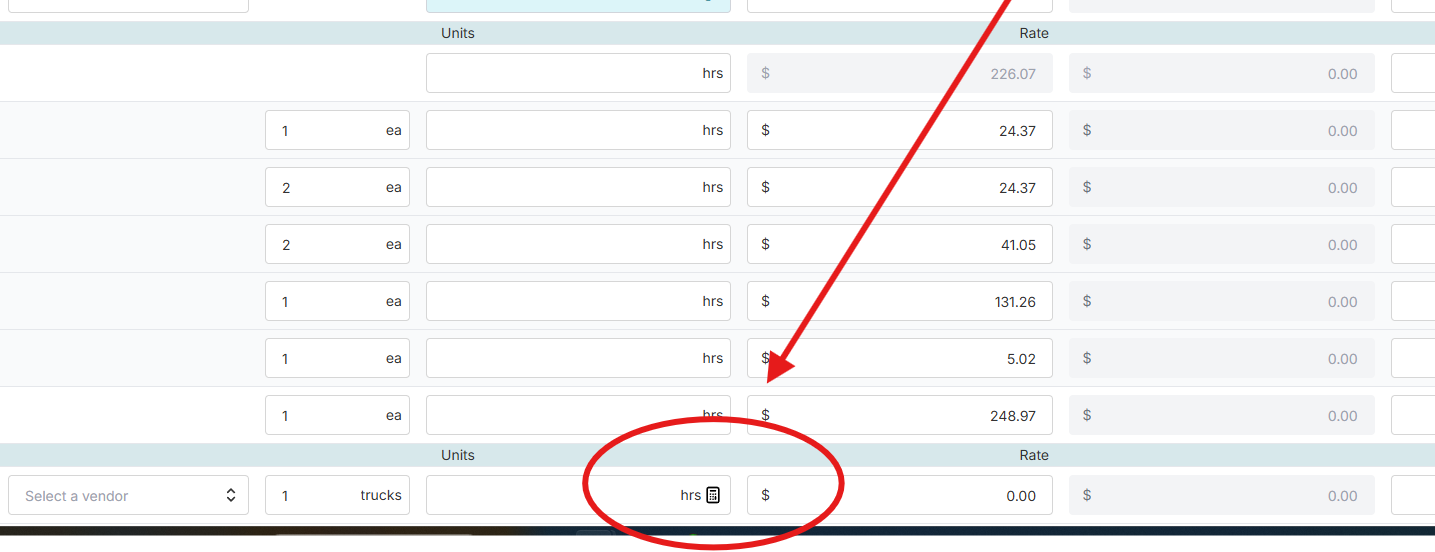
Scroll down to the Trucking line item. You should see a calculator icon next to the Units field. Click the calculator icon to open the Trucking Calculator window.
Click the calculator icon beside the Trucking Units field to open the Trucking Calculator.
If the calculator icon is not visible, the Trucking Calculator may not be enabled in Settings > Estimates.
Review the Calculator Inputs
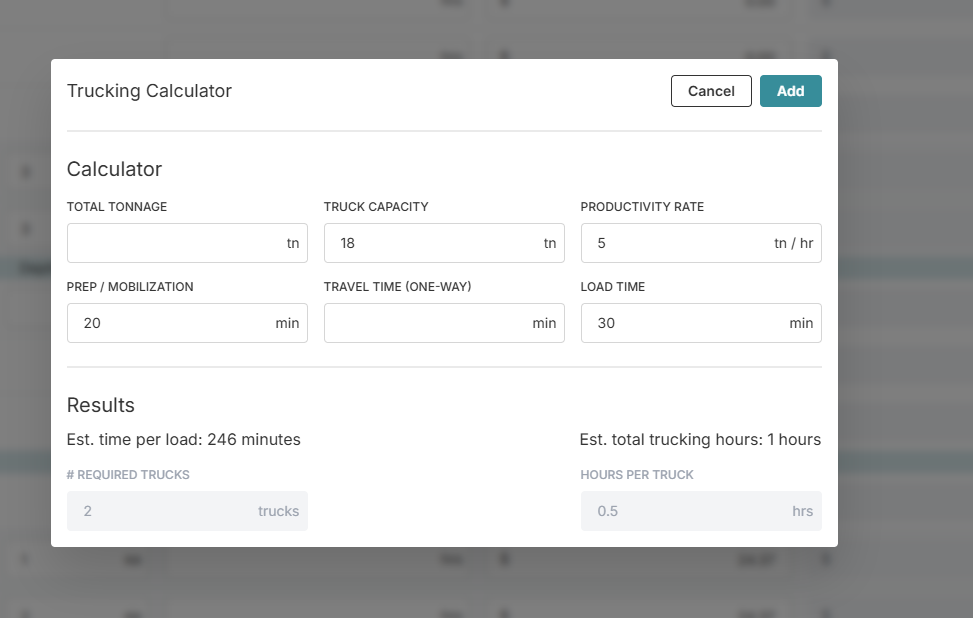
When the Trucking Calculator opens, several fields may be pre-filled based on your material inputs and default settings.
Field
Purpose
Total Tonnage
Represents the total material quantity being moved.
Truck Capacity
Represents the amount each truck can carry.
Productivity Rate
Helps calculate how quickly material can be moved or placed.
Prep / Mobilization
Accounts for setup, preparation, or mobilization time.
Load Time
Accounts for the time required to load each truck.
Travel Time One-Way
Job-specific travel time entered by the user in minutes.
Enter Travel Time and Review Results
Enter the Travel Time One-Way in minutes for the specific job. Use a reasonable estimate for the hauling route and expected traffic conditions.
The calculator automatically updates the Results section, showing:
Estimated time per load
Estimated total trucking hours
Number of required trucks
Hours per truck
Review the results against the actual job conditions before applying the calculation.
Enter the one-way travel time and review the calculated trucks and hours per truck.
Apply the Calculation
Review the results, then click Add. Confirm that the calculated number of trucks appears in the Trucks field and the hours per truck appear in the Units field.
Manual Adjustments
You can manually change the Trucks and Units fields in the Estimate when job-specific conditions require a different final value than the calculator suggests.
Manual changes made directly to the Estimate do not update the saved Trucking Calculator calculation.
If you reopen the calculator, it will show the inputs and results from the last calculation, or the default values if the line has not been calculated before.
Use the calculator as a baseline, then review its suggestions against the specific job conditions and adjust the final Estimate values when necessary.
Troubleshooting
Calculator Icon Not Visible
Confirm that the Trucking Calculator is enabled in Settings > Estimates.
Calculations Seem Incorrect
Verify the Truck Capacity, Productivity Rate, Load Time, Prep / Mobilization, and one-way Travel Time values.
Manual Changes Do Not Appear in the Calculator
This is expected. The calculator stores its own saved inputs and results. Re-enter values in the calculator and recalculate when needed.