Learn how to navigate the main OneCrew Settings area, understand what
each Admin section controls, and review the correct environment and
business unit before making changes.
OneCrew Admins mainly work in the Settings area
of the system.
The Settings area contains the configuration used to maintain
Crews, Services, Costs, Vendors, Jurisdictions, and other
information that supports estimating and Project workflows.
Changes made in Settings may affect Estimates, Projects,
pricing, Work Orders, scheduling, Actuals, costing, reporting,
and other OneCrew users.
Admin Settings Walkthrough Video
Watch this walkthrough for an introduction to the OneCrew Admin
Settings area and the main configuration sections available to
Admin users.
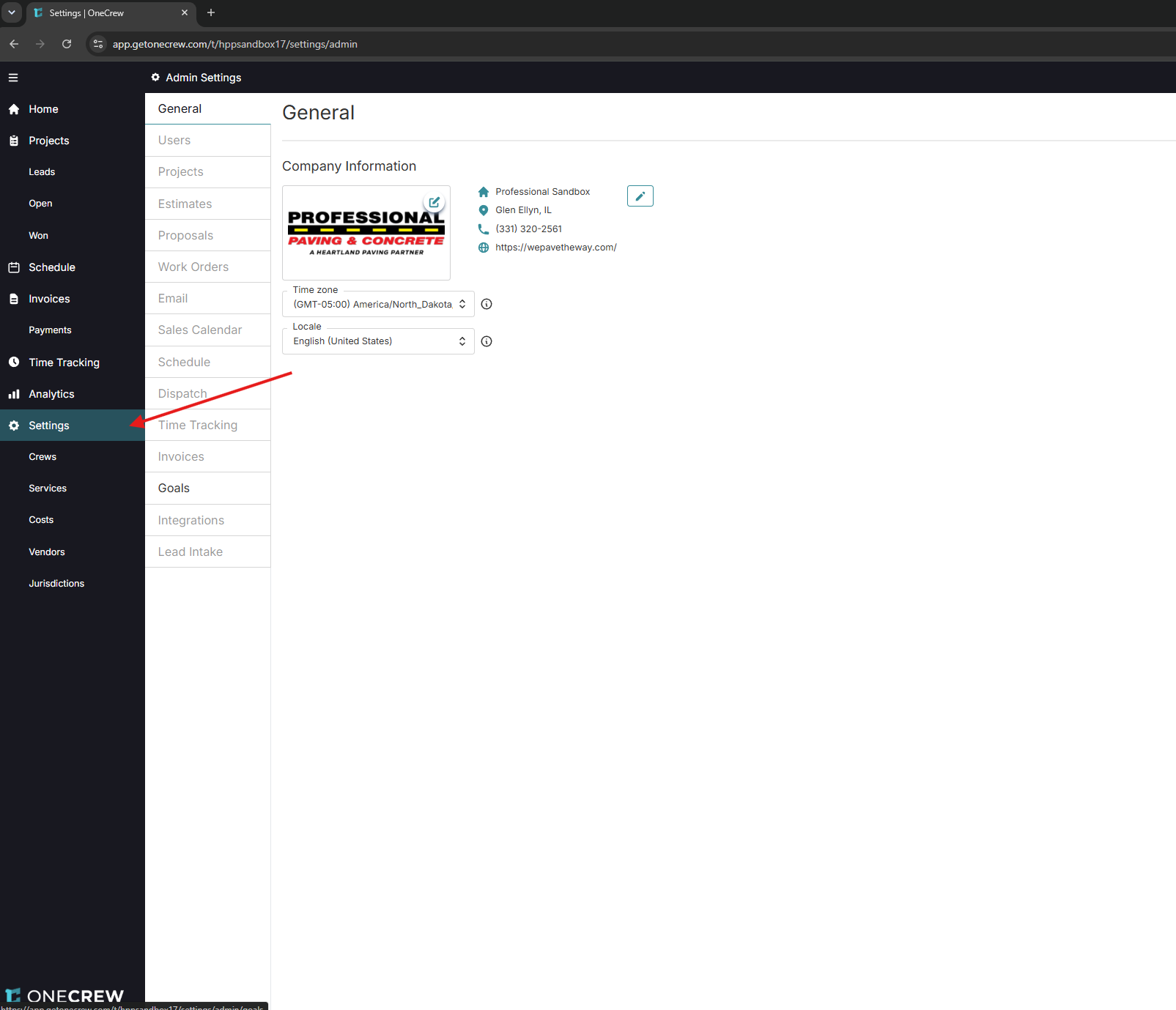
Navigate to the Settings Area
Use the main OneCrew navigation to open
Settings. The Settings menu contains the primary
areas used by OneCrew Admins.
The OneCrew Settings menu provides access to Crews, Services,
Costs, Vendors, and Jurisdictions.
Step 1
Open Settings
Open the Settings area from the main
OneCrew navigation.
Step 2
Select the Correct Settings Area
Select Crews, Services, Costs, Vendors, or Jurisdictions
based on the information you need to review.
Step 3
Search Before Creating
Search for the existing record before creating a new
Service, Cost, Vendor, Crew, or other setting.
Step 4
Review the Existing Record
Open the correct record and review its current configuration
before making any changes.
Main Settings Areas
Each option in the Settings menu controls a different part of
OneCrew.
Crews
Use Crews to review and maintain crew-related setup, including
crew names, team members, leaders, and other available crew
information.
Services
Use Services to review the types of work that can be added to
Estimates and Projects.
Service records may include units, labor, materials, equipment,
trucking, quantities, formulas, pricing, and other default
information.
Costs
Use Costs to review and maintain cost information used by
Services, Estimates, and job costing.
Cost records may include labor, materials, equipment, trucking,
subcontracting, and other job-related costs.
Vendors
Use Vendors to maintain outside companies that provide
materials, subcontracting, trucking, equipment rental, or other
products and services.
Search for an existing vendor before creating a new record.
For detailed instructions on Services, Costs, and Vendors,
continue to the Costs, Vendors & Services training module.
Before Making a Change
Complete the following checks before saving a change in the
OneCrew Settings area.
Step 1
Confirm the Environment
Make sure you are working in the correct Sandbox or
Production environment.
Step 2
Confirm the Business Unit
Make sure the correct business unit is selected before
reviewing or changing settings.
Step 3
Open the Correct Settings Area
Confirm that you are working in the correct Crews, Services,
Costs, Vendors, or Jurisdictions section.
Step 4
Review the Current Value
Review the existing record before replacing pricing,
configuration, or other information.
Step 5
Verify the New Information
Confirm that the replacement information is current,
accurate, and provided by an approved vendor or internal
source.
Step 6
Test When Appropriate
Test unfamiliar changes in Sandbox and ask for guidance when
the expected result is uncertain.
Do not change a live setting simply to see what it does. Use
Sandbox for testing and practice whenever possible.
Sandbox and Production
Always confirm the environment before reviewing or changing an
Admin setting.
Sandbox
Sandbox is intended for testing, practice, and reviewing
unfamiliar settings without immediately affecting live business
operations.
Use Sandbox when:
Learning how an unfamiliar setting works.
Testing a new configuration.
Reviewing how a change affects a workflow.
Confirming the result before applying the same change in
Production.
Production
Production is the live OneCrew environment used for actual
business operations.
Production changes may affect active users, Projects, Estimates,
pricing, Work Orders, scheduling, Actuals, costing, invoicing,
and reporting.
Only make a Production change when you understand the setting,
have verified the information, and understand the expected
impact.
Setting Ownership and Caution
Some OneCrew settings are maintained by an individual business
unit, while others may be controlled across the organization.
Before changing a setting:
Determine whether it applies only to your business unit.
Determine whether it may affect the entire organization.
Confirm whether the setting has already been standardized.
Confirm whether another team is responsible for maintaining it.
Consider whether the change could affect existing Projects,
Estimates, documents, or reports.
A setting appearing in OneCrew does not automatically mean it
should be changed or enabled. Confirm ownership and intended use
when you are unsure.
Getting Help
Stop and ask for guidance when you do not understand a setting or
the expected result of a change.
Ask for help when:
You do not understand what a setting controls.
You are unsure which Settings area contains the correct record.
The same or a similar record appears more than once.
A setting appears different between Sandbox and Production.
You are unsure whether the setting is organization-level.
A change produces an unexpected result.
Information to Include
What you were trying to do.
Which Settings area you were using.
What you expected to happen.
What actually happened.
Which environment and business unit you were using.
Any error message shown.
Include a screenshot or short video when possible. Show the
Settings area, record, environment, and any error message that
may help explain the issue.
Mobile App Support
Some employees use the OneCrew mobile app on company phones or
tablets to access job information and complete assigned work.
If the OneCrew mobile app is missing from a company device or is
not working correctly, direct the employee to contact the IT
team through the internal IT help form. Admins should not
reinstall the app or change managed-device settings unless
directed by IT.