Learn how Sales reviews a fully costed Project, compares estimated and actual results, resolves questions, and moves the Project forward for invoicing.
The final step once the job is completed is to review the costed job.
Operations and Costing are responsible for entering and verifying Actual Costs throughout the job. After the field work is complete and the Project has been fully costed, Sales performs a final reasonableness review before the Project moves forward for invoicing.
The goal is not for Sales to redo the costing process. The goal is to confirm that the final costs and margin make sense based on the work that was sold and completed.
Sales should identify unexplained differences, verify subcontractor costs when applicable, and communicate questions to the appropriate Costing person.
Before You Start
Before beginning the Sales review, confirm that:
The field work is complete.
Actual Costs have been entered for the completed work.
The Costing person has completed the costing review.
The Project has been marked as fully costed according to your business unit's process.
Supporting invoices, tickets, notes, and documents are available when needed.
Do not move the Project forward for invoicing while known costing questions or missing information remain unresolved.
Open the Analysis Tab
Step 1
Open the Project
Search for and open the fully costed Project in OneCrew.
Step 2
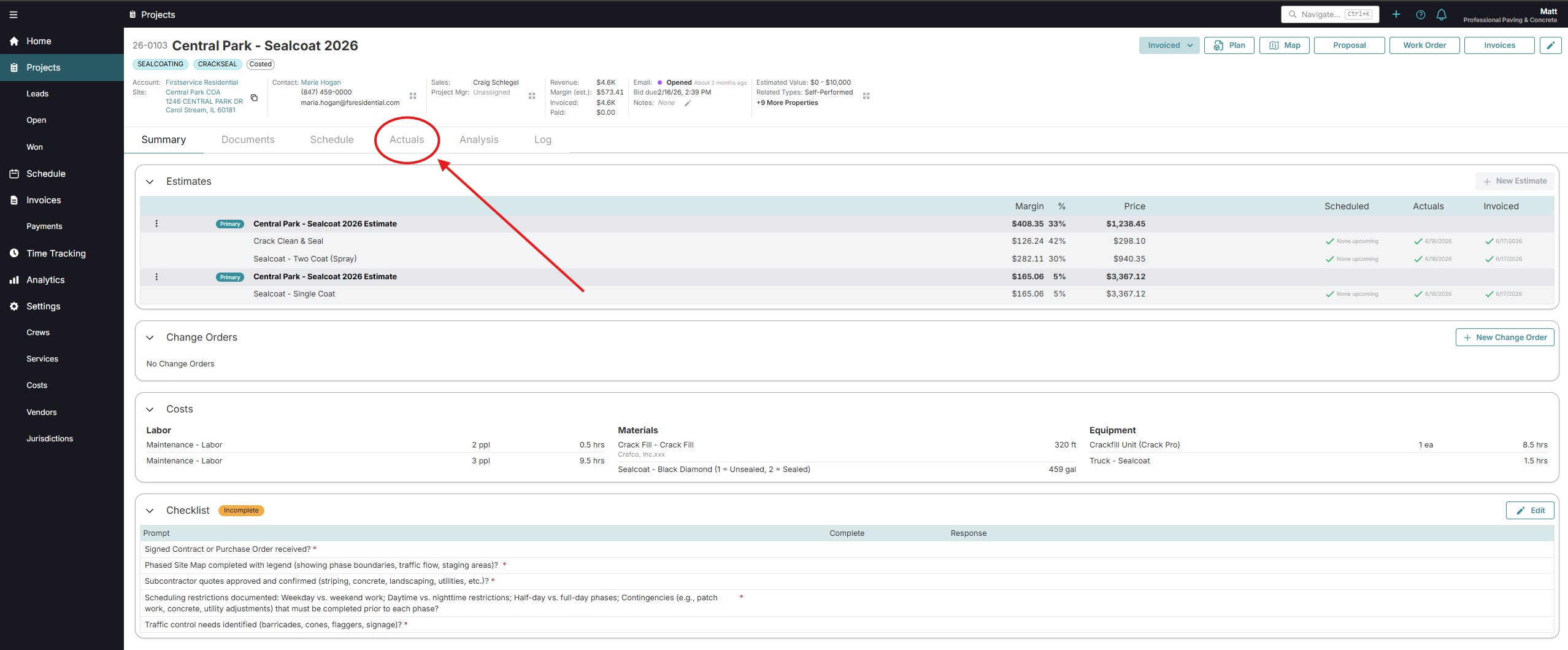
Select Analysis
Open the Analysis tab to review the financial results of the Project.
Step 3
Confirm the Project Is Ready for Review
Confirm that the Project is field complete and that Costing has finished entering and verifying the available Actual Costs.
Open the Project's Analysis tab to begin reviewing the completed job.
If the Analysis tab is not visible, contact your local administrator or the appropriate support team to confirm your user permissions.
Compare Estimated and Actual Results
Use the Analysis tab to compare the original Estimate with the final Actual Costs.
Review:
Estimated cost compared with actual cost
Estimated margin compared with actual margin
Differences by Service or cost category
Unexpected increases or decreases
Results that do not match the completed scope of work
Compare the estimated and actual results to identify significant differences before invoicing.
Large or unexplained differences should be understood before the Project moves forward.
Review Key Cost Categories
Review each major cost category and confirm that the final results appear reasonable for the work performed.
Labor
Confirm that labor hours, crew quantities, and overall labor costs make sense for the completed work.
Materials
Confirm that the materials and quantities align with the completed scope and any available vendor documentation.
Equipment
Confirm that the equipment used and the associated quantities or hours appear reasonable.
Trucking
Confirm that trucking costs and quantities are consistent with the Estimate and available trucking tickets or other supporting information.
Other or Additional Costs
Confirm that any added costs relate to the work performed and are supported by notes, invoices, tickets, or other documentation.
Verify Subcontractor Costs
Because Sales often works directly with subcontractors, the Salesperson may help verify subcontractor costs.
Confirm that:
The subcontractor invoice matches the completed scope.
The invoice amount matches the cost entered in OneCrew.
Any difference between the expected and invoiced amount is understood.
The cost has been verified according to your business unit's process.
Depending on the business unit, Sales may verify the subcontractor cost directly in OneCrew or initial the invoice so the Costing person can complete the verification.
Resolve Questions
When a cost or result does not make sense, use the Project Log or the agreed team process to contact the appropriate Costing person.
Include:
A clear description of the concern
The affected Service or cost category
The amount, quantity, or result that appears incorrect
Supporting invoices, tickets, notes, or documents when available
Do not make unapproved changes simply to make the final numbers appear correct.
Complete the Sales Review
Before completing the Sales review, confirm that:
The estimated and actual results have been compared.
Major cost categories have been reviewed.
Significant variances are understood.
Subcontractor costs have been verified when applicable.
Questions have been sent to the appropriate Costing person.
Known costing issues have been resolved.
Required supporting information is available.
When the review is complete, move the Project to Ready to Invoice according to your business unit's process.
Next Step
After Sales has completed the review and the Project has been moved to Ready to Invoice, the Accounting team can begin the invoicing process.