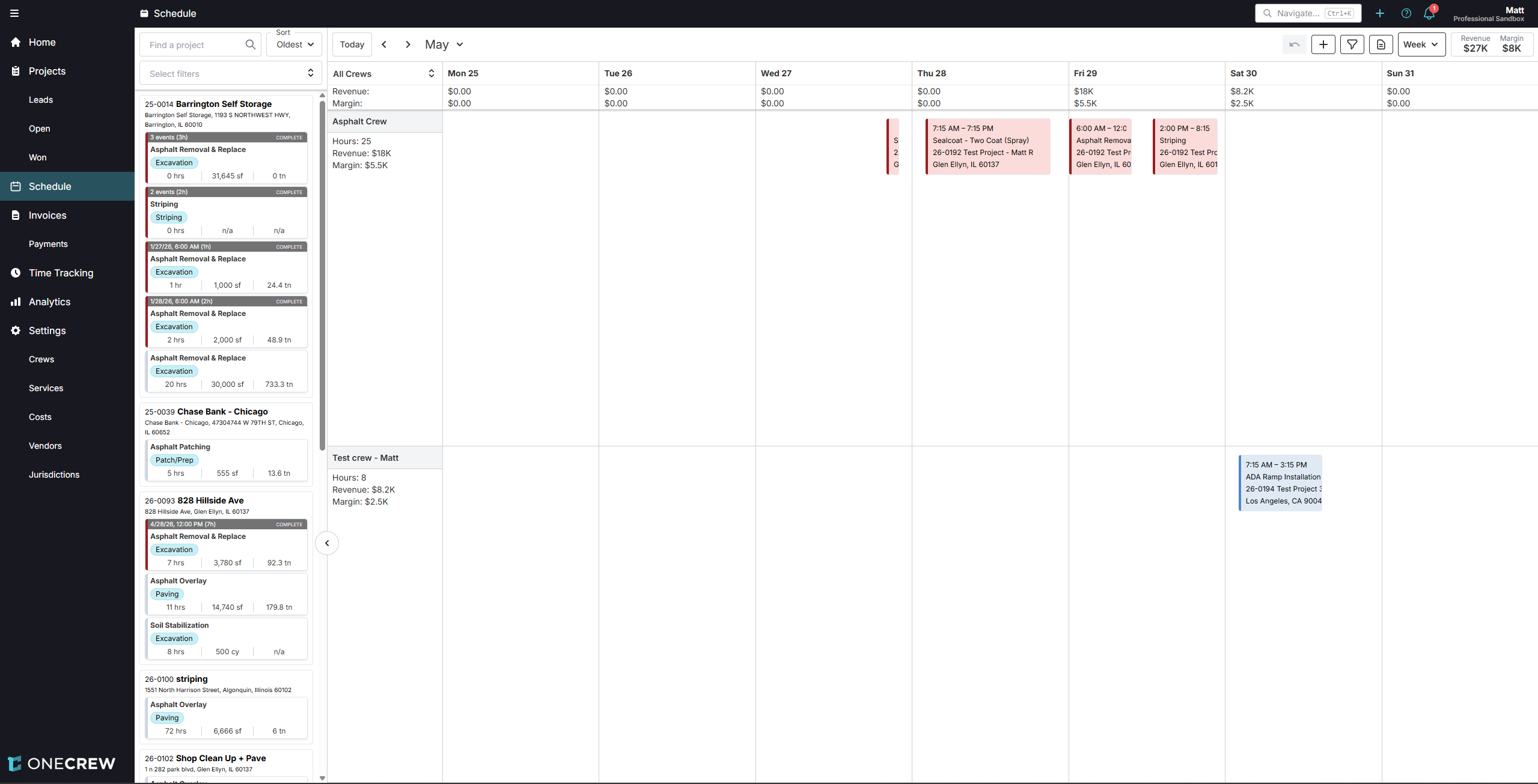
Learn how to use the OneCrew Schedule page, Service Queue, calendar views, crew filters, and scheduling tools to place accepted Project services on the calendar.
The Schedule page is used to locate accepted projects, assign project services to crews, adjust scheduled events, and review hours, revenue, margin, and project status. The sections below explain how to navigate the Schedule page and manage scheduled work in OneCrew.
Scheduling 101
Find Projects in the Service Queue
Searching the Schedule
Use the Find a project search bar, at the top left to quickly locate specific projects
Filter the list using Tags (e.g., "Asphalt", "Commercial")
Sort projects by criteria like Oldest, Newest, or Price $$$ - $ using the dropdown menu
Click on any scheduled event on the calendar to open the Details Panel on the right
This panel displays labor hours, materials, equipment, and other information pulled from the estimate
You can adjust the event's Start/End Times or Date directly in this panel
If a service requires multiple work sessions (e.g., prep work one day, main work another), you can drag the same service from the Service Queue again or click and drag from the listed services in the Details Panel to create another event on the calendar
Configure Your Calendar View
At the top of the calendar, use the Today button, navigation arrows (>), or click the date range to open a date picker for selecting specific dates
Choose your preferred view: 1 Day, 3 Days, or Week
Use the All Crews dropdown (above the crew list) to filter the calendar to show only selected crews or all crews. Your crews will be listed vertically on the left side of the calendar
Insight: Assigning specific crews to your user profile (in settings) will make the schedule default to showing only those crews, decluttering your view if you manage a subset of the team.
Access the Schedule & Understand the Layout
Navigate to the Schedule page from the main sidebar on the left
The screen is divided into two main parts:
Service Queue (left panel): Lists all accepted projects and their individual services that are ready to be scheduled
Calendar (right panel): Displays scheduled events for your crews
Schedule a Project Service
Locate the project or specific service you want to schedule in the Service Queue
Click and drag the project/service card from the queue onto the calendar
Drop the card onto the desired crew's row at the specific date and time slot. The scheduled event will appear, color-coded by crew
Once a service is fully scheduled, it will be removed from the Service Queue. If a project has multiple services, the main project card will remain in the queue until all its services are scheduled, with individual services showing a "COMPLETE" status as they are placed on the calendar
Review Scheduled Work & Key Metrics
Crew Metrics: Under each crew's name on the calendar, you'll see their total scheduled Hours, Revenue, and Margin for the current calendar view (1-day, 3-day, or week)
Daily Totals: At the bottom of the calendar, view the aggregated Revenue and Margin for each displayed day
View Totals: When an event is selected and the Details Panel is open, the top right corner of the panel shows the total Price and Margin for all work scheduled within the current calendar view
Project Status: Click on the scheduled item to bring up the details popup. Check that the status is set correctly for the project. If the project status needs to be changed, open the project and then update the status
Troubleshooting
Project not in Service Queue:
Ensure the project's estimate has been marked as "Accepted." Only accepted projects appear for scheduling
Overlapping Events:
The calendar allows scheduling overlapping events for the same crew; they will appear stacked. Manually review and adjust conflicting schedules as needed
Metrics seem off for a multi-day service:
Revenue and margin for services scheduled over multiple days are distributed proportionally based on the hours scheduled each day. Ensure you're looking at the correct daily or overall view for accurate totals
Specific Crew Not Visible:
Double-check the All Crews filter above the crew list on the calendar to ensure the desired crew is selected for display