Actual job costing is an important part of the process because it ensures job costs are recorded in OneCrew so profitability can be reviewed.
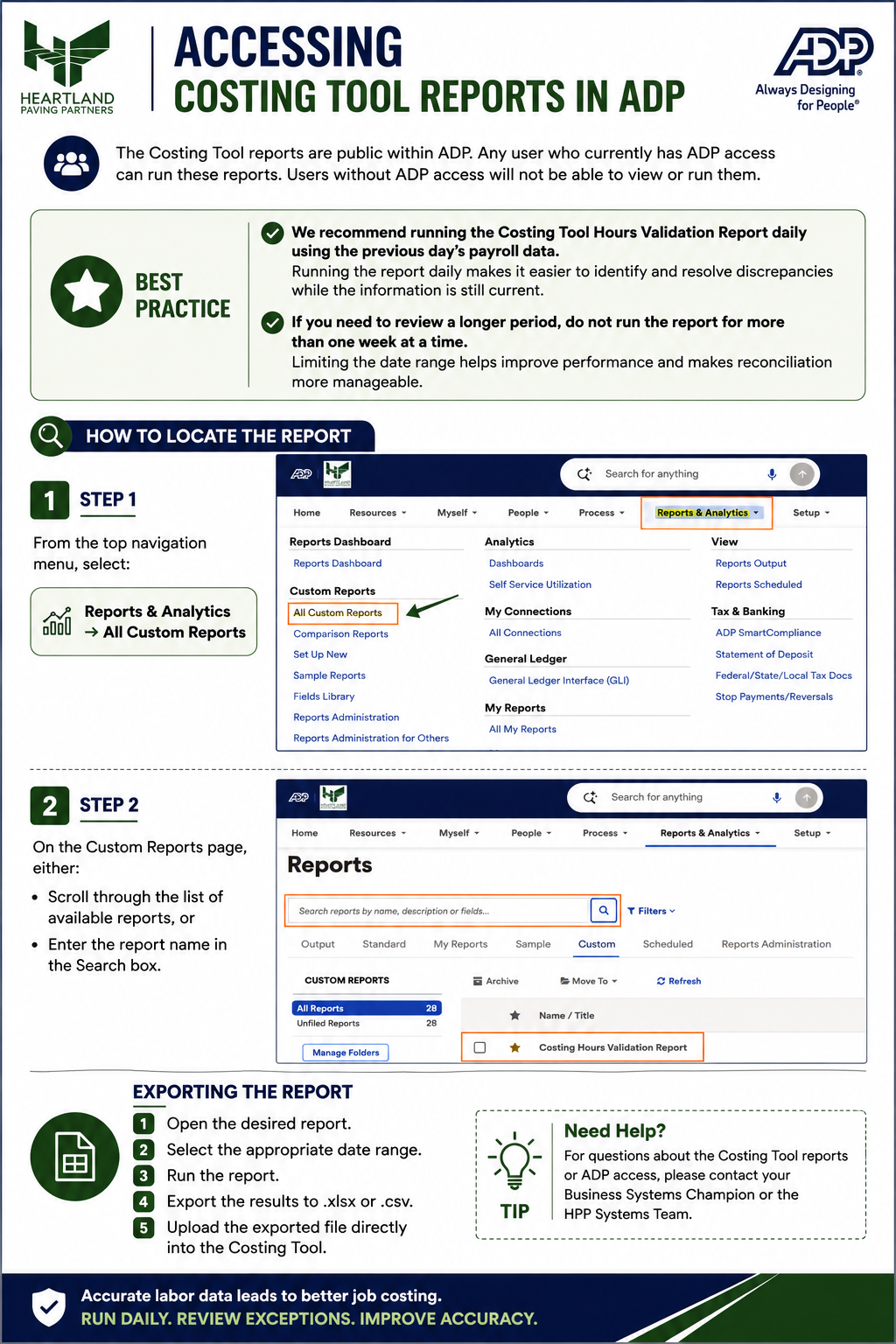
Actual costs may be entered through the desktop Actual Cost Entry area by office staff or through the mobile app by field personnel. Office staff are responsible for verifying the entries, checking supporting documentation, and completing the costing process. You can use this costing tool to help verify actuals versus estimated with ADP
Training Videos
Use these videos as visual walkthroughs for the costing process. The written sections below summarize the steps office staff should follow in OneCrew.
Costing in OneCrew
Editing Actuals
Before You Start
Before completing final costing, confirm the project is field complete or ready for final costing review.
Have available invoices, tickets, receipts, and payroll or time information when applicable.
Confirm actuals have been submitted for the work being reviewed.
Use the Costing Tool for assistance if needed.
Review the project for pending documentation before marking costs complete.
Costing Tool
Use the Costing Tool to help review project labor and compare actual hours against report data from ADP.
Confirm foremen submitted actuals for the previous day in OneCrew.
Use the Costing Tool for assistance if needed.
Follow up on any missing actuals.
Review each actual for reasonableness and obvious data entry errors.
Verify Cost Categories
Review each major cost category to confirm the entries are complete, reasonable, and supported by the available information.
Verify Labor
Review labor entries to confirm the hours and classifications are accurate. Compare labor hours against the payroll system, such as ADP, when needed. Investigate any differences between labor and equipment usage.
Verify Equipment
Review equipment entries and confirm all equipment used on the job is recorded. Add missing equipment as needed, and check foreman notes for equipment that was used in the field but not originally listed.
Verify Materials
Compare material quantities and costs against tickets, receipts, and invoices. When invoices are received, update the quantity or cost as needed. If an invoice is still pending, leave the estimated cost in place and document the pending item in the notes.
Verify Trucking
Compare trucking actuals to the Estimate and verify the supporting tickets, hours, vendors, and quantities. Document any differences in the notes and do not complete trucking until the required support has been received.
Verify Costs Against Invoices
When the project is field complete, complete a final check of the costing entries before continuing.
Go to the Analysis tab.
Check the price or amount on the invoice from the vendor against the cost or amount entered in OneCrew.
Repeat the review until all applicable entries have been verified.
Costs should match the supporting documentation before they are treated as fully verified.
Maintain the Audit Trail
Record all adjustments in the Actuals notes.
Upload invoices and receipts.
Reference invoice numbers when applicable.
Document any pending items.
Complete the Job / Mark Costed
When all costs have been entered and verified, complete the costing process.
Mark each phase as Costed by using the checkbox on the Status tab under the Actual Cost Entry tab.
When all phases are marked Costed, confirm the Cost Complete popup by clicking Yes.
Notify the salesperson through the Project Log for final review before invoicing.