Creating a Project in OneCrew establishes the record that will be used for estimating, proposals, scheduling, and the rest of the job process. This page explains how to open the New Project page, select the correct related records, complete the required details, and create the Project.
Creating a Project Video
Watch this walkthrough for a visual example of creating a new Project in OneCrew.
Before creating a Project, search OneCrew to confirm that the correct Account, Contact, and Site already exist.
Always check for existing records before creating a new Account, Contact, or Site. The goal is to avoid duplicate records in OneCrew.
Open the New Project Page
Example of the New Project page in OneCrew.
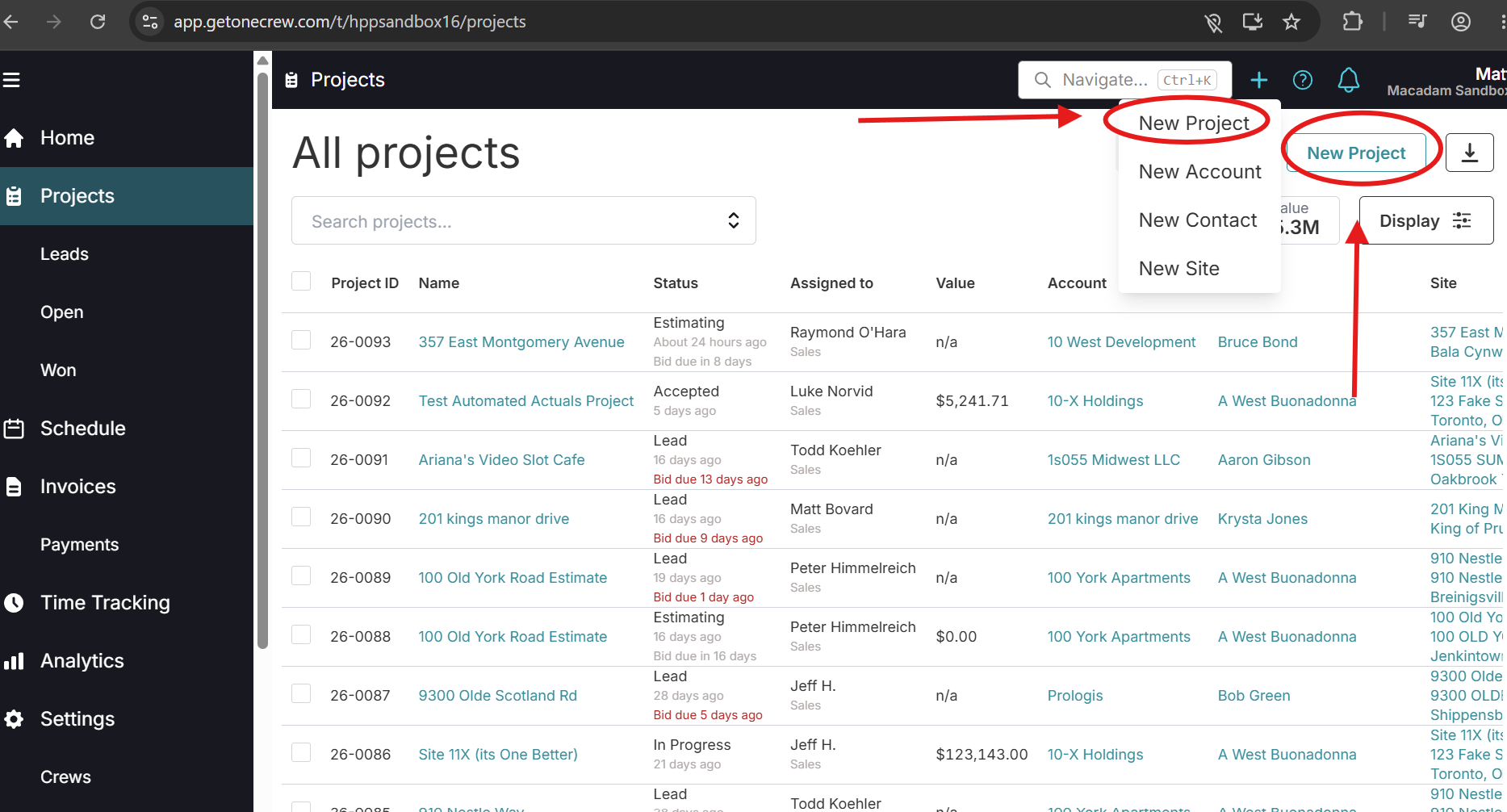
There are two ways to begin creating a Project:
Click the plus button and select New Project.
Click New Project from the right side of the Projects area.
Select the Contact, Account, and Site
On the New Project page, select the Contact, Account, and Site associated with the Project.
Use existing records whenever possible. Only create a new Account, Contact, or Site after confirming that the correct record does not already exist.
Complete the Project Details
Complete the required Project information. Fields marked with a red indicator are required. OneCrew automatically generates the Project ID in the current year-number format and selects the standard checklists.
Select whether the work is self-performed or subcontracted under Relation Type.
Add the appropriate team members under Salesperson, Project Manager, and Other Assignees.
Complete any applicable options, including Intercompany Job, Schedule Date, Budget Job, and Tax Exempt.
Create the Project
Review the information you entered, then click Create.
OneCrew will open the newly created Project page.
Next Step
After the Project has been created, continue to Create Estimate and Send to the Customer.