Project statuses show where a Project is in the OneCrew
workflow. They help Sales, Operations, Field, Costing, and
Accounting understand what has already happened and what
needs to happen next.
Some statuses update automatically when an action is
completed in OneCrew. Other statuses require the responsible
team to review the Project and manually update it.
A Project status should reflect the actual condition of the
job. Other teams rely on this information when planning,
scheduling, costing, invoicing, and completing work.
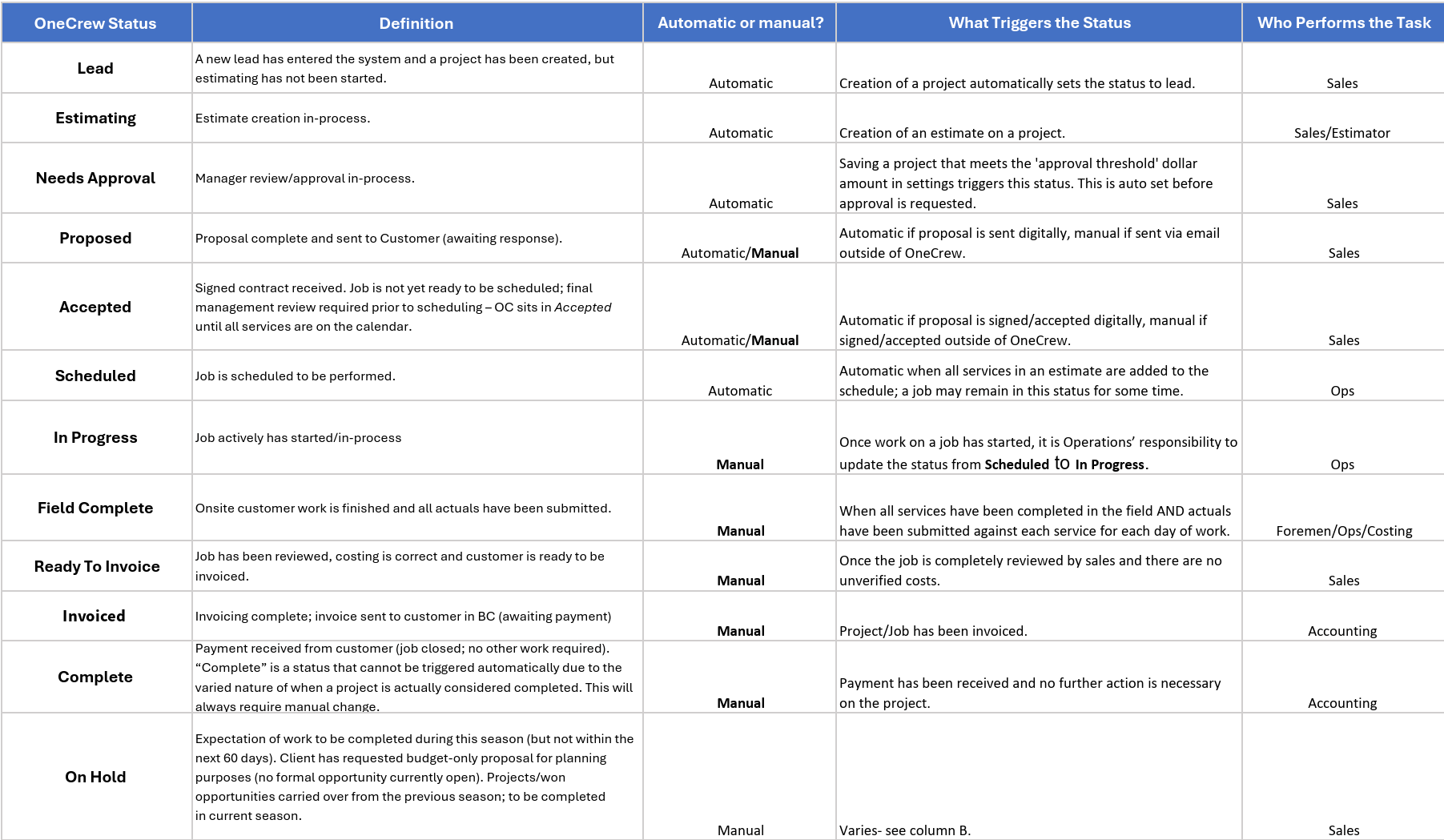
OneCrew Status Reference
Select the status chart to open the full-size image in a new
tab, where you can zoom in and review each definition,
trigger, and responsible team.
They show where a Project is in the overall workflow.
They help the next team know when it is ready to begin its
work.
They support scheduling, reporting, costing, invoicing,
and follow-up.
They help prevent Projects from being overlooked or moved
forward too early.
They provide a consistent way to track work across
business units and departments.
Automatic Statuses
Automatic statuses are triggered by specific actions
completed in OneCrew. Users should still understand why the
status changed and confirm that the Project information is
accurate.
Status
Automatic Trigger
Primary Team
Lead
A new Project is created.
Sales
Estimating
An Estimate is created on the Project.
Sales / Estimator
Needs Approval
A saved Project meets the configured approval-threshold
amount.
Sales
Scheduled
All services included in the Estimate have been added
to the schedule.
Operations
Manual Statuses
Manual statuses require the responsible team to confirm that
the required work is complete before changing the status.
Status
When It Should Be Used
Primary Team
In Progress
Work has started and is actively underway.
Operations
Field Complete
Field work is finished and all required actuals have
been submitted.
Foremen / Operations / Costing
Ready to Invoice
The job has been reviewed, costing is correct, and no
costs remain unverified.
Sales
Invoiced
Invoicing is complete and the invoice has been sent to
the customer through Business Central.
Accounting
Complete
Payment has been received, costing is complete, and no
further action is required.
Accounting
On Hold
The opportunity is expected to continue later, but
active work is not currently moving forward.
Sales
Statuses That May Be Automatic or Manual
Some statuses may update automatically when OneCrew is used
for the full process, but may need to be changed manually
when the related action occurs outside OneCrew.
Status
Automatic
Manual
Proposed
The Proposal is sent digitally through OneCrew.
The Proposal is sent outside OneCrew, such as through a
separate email.
Accepted
The customer digitally signs or accepts the Proposal
through OneCrew.
A signed or accepted Proposal is received outside
OneCrew.
When a Proposal is sent or accepted outside OneCrew, the
responsible user must make sure the Project status is
updated manually.
Status Responsibility Overview
Team
Common Status Responsibilities
Sales
Lead, Estimating, Needs Approval, Proposed, Accepted,
Ready to Invoice, and On Hold.
Operations
Scheduled and In Progress, along with supporting the
move to Field Complete.
Field / Foremen
Complete scheduled work, submit actuals, and notify the
appropriate team when field work is finished.
Costing
Review and verify actual costs before the Project moves
forward for invoicing.
Accounting
Invoiced and Complete after billing and payment
requirements have been satisfied.
Important Status Reminders
Do not change a Project status until the required action
or review is complete.
Confirm whether OneCrew updated the status automatically
before changing it manually.
When work begins, Operations is responsible for changing
Scheduled to In Progress.
Do not use Field Complete until field work and required
actuals are finished.
Do not use Ready to Invoice while costs remain unverified.
Complete always requires a manual review because every
Project may have different final requirements.
Use the OneCrew Log to document important updates and
notify the next responsible person or team.