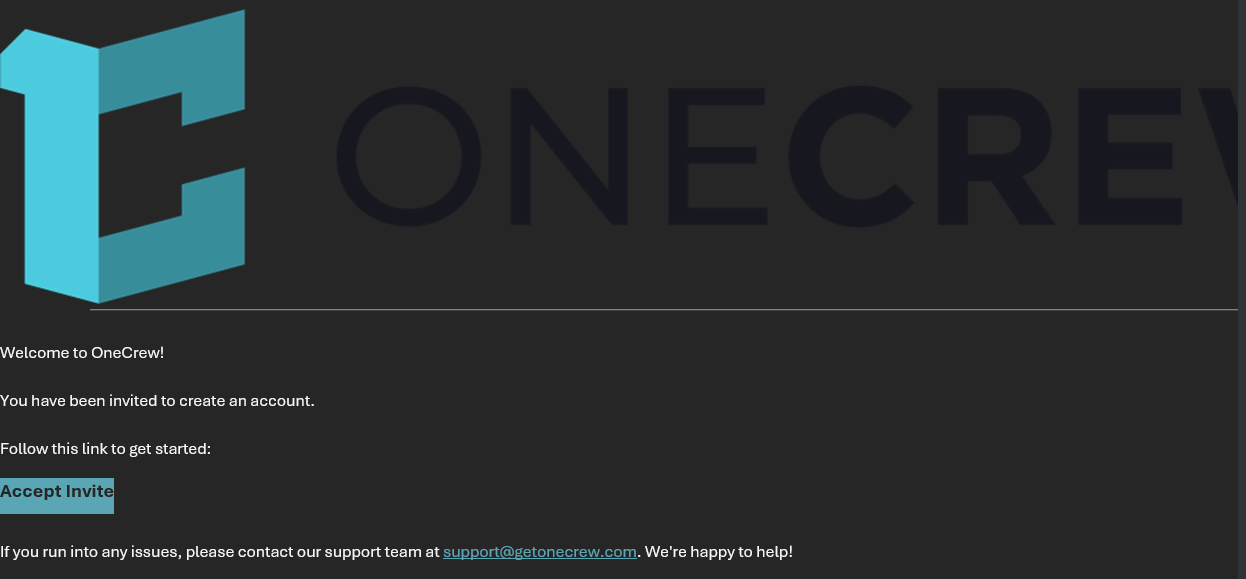
Before using OneCrew, you must accept the invitation sent to your company email. The invitation email includes a sign-up link that allows you to create or activate your OneCrew account.
This page explains how to find the invite, accept it, use the correct browser, and get help if the invite is missing, expired, or not working.
Before You Start
Check your company email for a OneCrew invitation.
Use Google Chrome when opening the invite and accessing OneCrew.
Use your company email when creating or activating your OneCrew account.
The OneCrew invite email will come from OneCrew and will include an option to accept the invite. The email may say that you have been invited to create an account.
Accept Your Invite
Step 1
Open Your Company Email
Open your company email inbox and look for the OneCrew invitation email.
Step 2
Open the Invite in Google Chrome
Open the invitation link using Google Chrome. If another browser opens by default, copy the link and paste it into Chrome.
Step 3
Click Accept Invite
Click the Accept Invite button or link in the email to begin creating your OneCrew account.
Step 4
Use Your Company Email
When creating or activating your account, use your company email address. Do not use a personal email.
Step 5
Complete Account Setup
Follow the prompts on the screen to finish creating or activating your OneCrew account.
Important: Use Google Chrome
Use Google Chrome when working in OneCrew. Avoid using Microsoft Edge unless directed otherwise.
Using the recommended browser helps prevent display, login, or system behavior issues while working in OneCrew.
Do not create a separate OneCrew account with a personal email.
Do not forward your invite to another user.
Do not use another employee's login information.
Ask the IT department to resend the invite or confirm your access.
After You Get Access
Once your OneCrew account is active, continue using Google Chrome when accessing the system.
The next step is to learn the basic OneCrew layout and navigation so you know where to find Projects, customer records, Estimates, Proposals, documents, schedules, and other related information.